
Help Article
Reading the site forecast
What the numbers, colours, lines and bars on a flying site's weather forecast mean, including the red wind shear lines, the Columns and Visualisation views, and the hour and day strips.
Reading the site forecast
Open a flying site and tap Weather Forecast to see the forecast for that launch. This article explains what each part of the forecast page shows. To find a site and open its forecast, see Flying Sites.
The forecast cards, the Columns and Visualisation wind views and the written summary are part of the Adventurer plan. On every plan, the title shows the flying advice and the hour and day strips show when it looks flyable.
The scene at the top
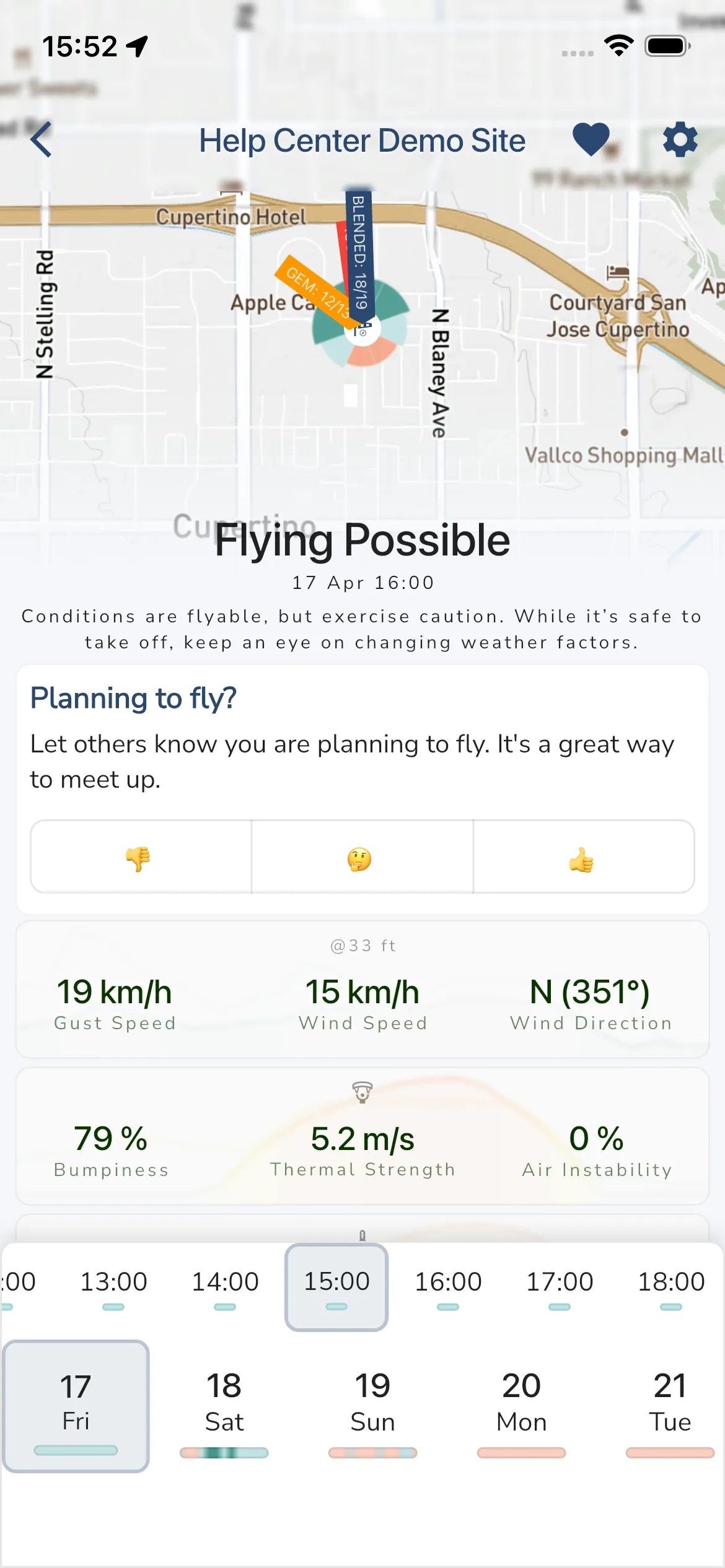
The top of the page shows a picture of the terrain around the launch, seen from the side the wind comes from. It shows the launch pin, a faint ribbon of wind rising from the launch, a compass for the site, and the clouds and weather for the hour you selected. When the wind is strong enough, the scene also shows fine bright streaks that run up the windward face of a hill and over the crest. They show rising air from ridge lift. Soft amber to salmon wisps behind a crest show the rough, turbulent air in the lee. The picture changes when you pick another hour or day.
Plan to fly
The forecast page has a Planning to fly? control that lets other pilots know your plan for the selected day. It has three emoji buttons: 👎 for Not going, 🤔 for Thinking about it and 👍 for Going.
The Who’s Flying? list shows the pilots who answered for that day, each with their answer. A pilot who has not answered shows Still deciding. The list has a button to open the site chat.
Choose a day and time
The strips at the bottom of the page choose what the rest of the page shows.
Day strip: each day shows its date and weekday, a bar for that day’s daylight hours (earliest on the left) and up to three photos of pilots planning to fly there. Tap a day to select it; the time of day stays the same.
Hour strip: each hour has a bar underneath:
- long teal bar: Good Flying Conditions
- medium pale-blue bar: Flying Possible
- short faded red bar: Flying Not Advised
- short grey bar: no advice for that hour
The sun icon marks the sunrise hour and the moon icon marks the sunset hour. Tap an hour to select it.
On a wide screen held sideways, the scene fills the left side and a week strip sits under it. The strip has one cell for each day with a bar for each daylight hour, coloured by the flying advice. Tap or drag along a day to choose that day and hour. The forecast details scroll on the right.
You can also tap or drag across any forecast graph, swipe the Columns cards or drag inside Visualisation. Everything on the page follows the selected time.
Flying advice
The title shows the advice for the selected hour and, when flying is not advised, the main reason. Gaggle works out the advice from:
- wind speed and gusts, compared with your Flyable Weather Settings
- wind direction, compared with the site’s wind guide
- rain
- daylight (hours more than 15 minutes before sunrise or after sunset are not advised)
- cloud base, compared with the site’s minimum cloud base
The advice uses your own settings, so two pilots can see different advice for the same site.
Forecast cards
Each card shows values for the selected time and a graph of the day behind them.
Wind (measured 10 m above the ground): Gust Speed, Wind Speed and Wind Direction. The direction is where the wind comes from, for example NE (45°). On the graph, the solid line is wind speed and the dashed line is gusts.
Air Instability:
- Bumpiness: how rough the air is likely to feel, from 0 to 100%. It combines gustiness, wind shear, thermal strength and air instability.
- Thermal Strength: expected climb in thermals, in your climb rate unit.
- Air Instability: how readily the air forms thermals and convection, from 0 to 100%.
On the graph, the solid line is thermal strength and the dashed line is bumpiness.
Temperature (2 m above the ground), with sunrise and sunset times. The dashed grey line on the graph marks 0 °C.
Precipitation:
- Cloud Base: the lowest forecast cloud, as height above sea level. It shows
--when no cloud is forecast. - Cloud Cover: percentage of the sky covered.
- Precipitation: rain in millimetres for that hour.
On the graph, the solid line is cloud cover, the dashed line is cloud base and the blue bars are rain.
Pressure:
- Site: the launch elevation above sea level.
- Pressure: air pressure at the site.
- Density Alt: the height in the standard atmosphere that has the same air density as the site right now. A higher density altitude means thinner air: longer take-off runs, less thrust and weaker climbs, which matters most for paramotors.
- Pressure MSL: pressure corrected to sea level, as used on weather charts.
Wind at height
Switch between Visualisation and Columns to see the wind above the launch. Both views show ten heights above the ground at the site, from 50 m to 950 m in 100 m steps (about 160 ft to 3,100 ft).
Columns
Columns shows one card per hour. Swipe to move between hours, or long-press a card to move the graphs to that hour. The top row is the highest level.
Each row shows the height, the temperature, a windsock with the direction the wind comes from in degrees, and the wind speed.
Left bar: the sky at each height. The greyer a segment, the more cloud is forecast at that height. Cloud symbols appear at heights with 20% or more cloud cover.
Temperature colours:
- blue: below 8 °C (46 °F)
- green: 8 to 22 °C (46 to 72 °F)
- orange: 22 to 28 °C (72 to 82 °F)
- red: 28 °C (82 °F) and above
Wind speed colours follow your Flyable Weather Settings:
- green: up to your Max wind speed. Darker green is below half of it.
- orange: above your Max wind speed, up to the trim speed of your selected wing. Without a wing, Gaggle uses your Max Gust, or 13 m/s (about 29 mph) when that isn’t set either.
- red: above that speed.
Red lines: wind shear
A red line under the direction and speed of a row marks wind shear at that height. The wind changes speed, direction or both quickly over a short height. The line appears once the shear reaches 45%, and gets redder and thicker as the shear grows.
The percentage compares the change in wind with a reference of 4 m/s for every 100 m of height (about 9 mph per 330 ft), which is 100%. A change in direction counts as well as a change in speed.
As a guide:
- up to 30%: not a concern
- 30 to 60%: noticeable, usually manageable
- above 60%: take it seriously. Expect turbulence, sudden changes in airspeed and harder launches, climbs and landings as you pass through that layer.
For example, if the wind is 5 mph from 200° at 160 ft (50 m) and 9 mph from 240° at 490 ft (150 m), it changes by about 2.7 m/s over those 100 m. That is roughly 70% shear, so a strong red line appears there. Expect a turbulent layer shortly after launch.
Gaggle calculates shear between the forecast model’s own height levels, which can be closer together than the rows shown. A line can therefore appear where neighbouring rows look only slightly different.
Visualisation
Visualisation draws the whole day as a grid, with time across and height up. Each arrow is the wind at that hour and height. The arrow points along the wind and moves faster in stronger wind. Its colour shows the speed against your settings:
- black: calm
- black and white: windy, below your Max wind speed
- orange: above your Max wind speed, below your wing’s speed
- red: above your wing’s speed
Three red dots above an arrow mark wind shear of 45% or more, like the red lines in Columns. A grey haze marks cloud at that height. The background darkens before sunrise and after sunset.
Tap or drag the paraglider marker to choose a time and height. The values above the graph show the wind speed, temperature, wind direction and wind shear percentage at that point. The labels on the right edge show the direction and speed at each height for the selected time.
Forecast summary
Adventurer pilots also get a short written summary of the day, generated from the forecast. It highlights the best flying window and the main things to watch. Like the rest of the page, it is model guidance, not a flight briefing.
Adjust the forecast to how you fly
Tap the settings icon in the top-right corner and open Flyable Weather Settings:
- Wind Speed: your Best, Max and Max Gust wind speeds. These set the flying advice and the wind colours.
- Bumpiness: sliders for Wind Gusts, Wind Shear, Thermal Strength and Air Instability, from 0 to 200%. Raise a factor if it bothers you more than most pilots, or lower it if it bothers you less.
These settings only change your own forecast. Below Flyable Weather Settings the panel also has:
- Wind Guide, for flying sites but not airports. Only site admins can open it. Other pilots see a note that admin permission is needed.
- Weather Alerts and Flying Schedule Alerts, your own alert switches for this site. Both are on by default. To get weather alerts, favourite the site and fly there regularly.
Site admins set the wind directions and minimum cloud base in the site’s Wind Guide; see Flying Sites.
Where the forecast comes from
Gaggle uses Open-Meteo’s best-match weather model for the site’s location and shows the next seven days. Forecasts are refreshed every few hours.
A forecast is model guidance. Compare it with current observations, local knowledge and official aviation weather before you fly.